WaveguideCoplanar
The PCell declaration for an arbitrary coplanar waveguide.
Source: KQC (KQCircuits). Category: waveguide. Module: kqcircuits.elements.waveguide_coplanar.
Note
Canonical cell of an alias group. Aliases: CpwSegment.
See also the catalog.
Pins
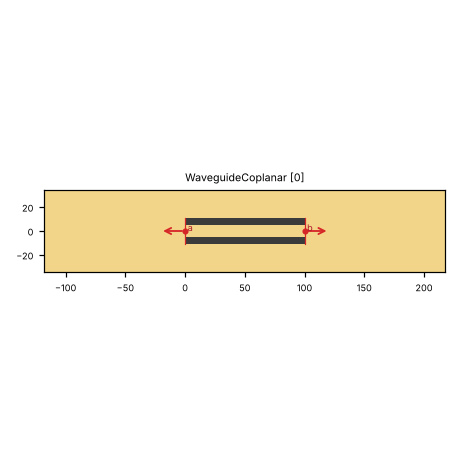
Pin image (default parameters). Light = metal, dark = etched gap, colours = junction layers. A red dot and arrow is a pin and its direction (out of the cell); the red bar is the CPW width a + 2 b. Blue dot = a pin without direction. Units: µm.
pin |
x (µm) |
y (µm) |
direction (°) |
a (µm) |
b (µm) |
purpose |
|---|---|---|---|---|---|---|
|
0 |
0 |
180 |
10 |
6 |
CPW end; LOM node |
|
100 |
0 |
0 |
10 |
6 |
CPW end; LOM node |
a, b: CPW centre width and gap where the pin declares them (– = not declared). Position and direction are in the cell’s own frame (at=(0, 0), rot=0).
Parameters
name |
default |
unit |
description |
|---|---|---|---|
|
|
μm |
Width of center conductor |
|
|
μm |
Width of gap |
|
|
μm |
Turn radius |
|
|
μm |
Termination length start |
|
|
μm |
Termination length end |
|
|
– |
Add ground grid also to the waveguide |
|
|
– |
Add trace in base metal addition too |
Electrically relevant parameters (sizes, gaps, junction, ports) come first, the rest follows.
LOM model
The cell contributes to the lumped model:
no lumped branches
line |
node |
length (µm) |
a (µm) |
b (µm) |
ends |
|---|---|---|---|---|---|
|
|
100 |
10 |
6 |
short / short |
Nodes: line.
How to use
In Python:
from quantcore_circuits.designer import Designer

d = Designer("demo", box=(0, 0, 7500, 7500))
d.add("U1", "WaveguideCoplanar", at=(3750, 3750), a=10)   # parameters: see the table above
d.add("PAD", "BondPad", at=(1125, 3750), rot=270)   # a launcher to connect to
d.route("L1", "PAD.a", "U1.a")                # a CPW from the pad to the pin
Pin names go into d.route(...) as INSTANCE.pin, and into snap= / to= when placing. From the shell: qcc components WaveguideCoplanar lists the pins; add --schema for the parameters.
In KLayout: Quantcore panel ▸ Components ▸ double-click the cell, then click on the layout to place it. Rotate and mirror before the click; use Connect on two pins to route.