metal:BridgeFreeJunction
user_bridgefreejj.png
Source: Metal (Qiskit Metal). Category: junction. Module: qiskit_metal.qlibrary.user_components.BridgeFreeJJ.
Warning
Legacy cell. Metal 2/0 junction footprint without pins, not the trilayer process; unused. Use QuantcoreJunction
See also the catalog.
Pins
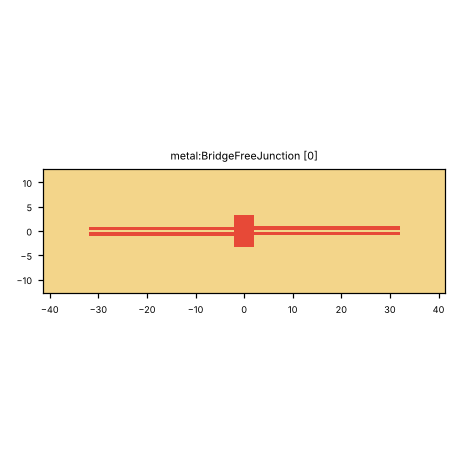
Pin image (default parameters). Light = metal, dark = etched gap, colours = junction layers. A red dot and arrow is a pin and its direction (out of the cell); the red bar is the CPW width a + 2 b. Blue dot = a pin without direction. Units: µm.
No pins: this cell has no ports. Place it with at= / rot=.
Parameters
name |
default |
unit |
description |
|---|---|---|---|
|
|
μm |
Width of center conductor |
|
|
μm |
Width of gap |
|
|
μm |
Turn radius |
|
|
– |
Junction as fabricated: Metal footprint, or a trilayer cell placed on each junction line |
|
|
– |
Trilayer junction cell parameters (JSON dict, e.g. lj_nH) |
|
|
– |
Quantum Metal component |
|
|
– |
Metal options as JSON (bare numbers on length options are µm) |
|
|
– |
Pins left open (comma-separated): keep Metal’s etch beyond them, as drawn with no route attached |
Electrically relevant parameters (sizes, gaps, junction, ports) come first, the rest follows.
LOM model
The cell contributes to the lumped model:
no lumped branches
X (metal:BridgeFreeJunction): junction without pins; model it as part of its qubit
How to use
In Python:
from quantcore_circuits.designer import Designer

d = Designer("demo", box=(0, 0, 7500, 7500))
d.add("U1", "metal:BridgeFreeJunction", at=(3750, 3750), a=10)   # parameters: see the table above
# no directed pin: place it with at= / rot=, or snap it with snap= / to=
Pin names go into d.route(...) as INSTANCE.pin, and into snap= / to= when placing. From the shell: qcc components metal:BridgeFreeJunction lists the pins; add --schema for the parameters.
In KLayout: Quantcore panel ▸ Components ▸ double-click the cell, then click on the layout to place it. Rotate and mirror before the click; use Connect on two pins to route.